Installation guide
How to install the AvalonQuant trading tool on Windows and macOS. Pictures of each step past the 'Windows protected your PC' and macOS 'unidentified developer' warnings shown on first launch, why the warnings appear, checking the installer's SHA-256, what to do after the first launch, uninstalling and updating, and troubleshooting.
Kit coming soon: the download is not open yet. This guide describes installing the upcoming release ahead of time.
System requirements
- Windows: Windows 10 or 11, 64-bit. The installer is AvalonQuant-<version>-win-x64-setup.exe.
- macOS: on an Apple chip Mac (M1 or later) get mac-arm64.dmg, on an Intel Mac get mac-x64.dmg. Apple menu → 'About This Mac' shows 'Chip' or 'Processor'.
- Size: about 610 MB after installation. The backtest price cache and logs in the data folder grow with use.
- Nothing else, such as Python, needs to be installed. To keep a strategy running, the computer has to stay on and online for that time.
Installing on Windows
1. Run the installer
Double-click the downloaded AvalonQuant-<version>-win-x64-setup.exe.
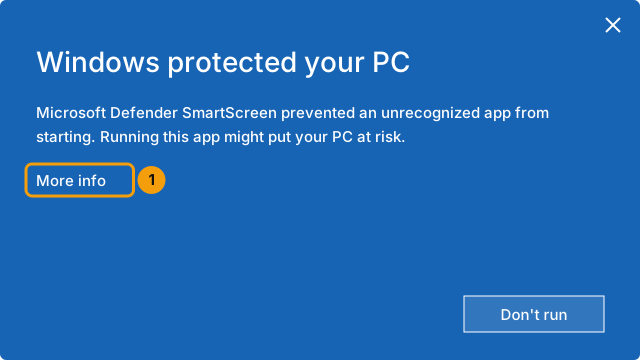
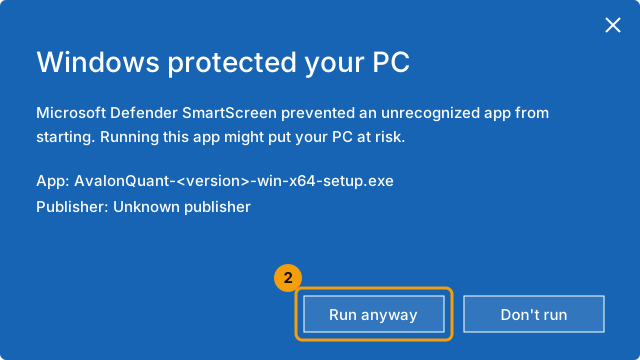
2. On 'Windows protected your PC', press 'More info' → 'Run anyway'
When the blue 'Windows protected your PC' window appears, do not close it; press 'More info' under the text.
The app name and 'Publisher: Unknown publisher' appear, with a 'Run anyway' button below. Press 'Run anyway'.
3. Go through the setup wizard
Check the install location and press 'Install'. It installs for the current user only, so no administrator rights are needed. An AvalonQuant shortcut is created on the desktop.
4. First launch
Open AvalonQuant from the desktop or the Start menu. The dashboard appears after a few seconds. Closing the window leaves the app in the notification area (right side of the taskbar) to keep strategies running; to quit completely, use 'Quit' in the icon's menu.
Installing on macOS
1. Open the dmg
Double-click the downloaded AvalonQuant-<version>-mac-arm64.dmg (mac-x64.dmg on an Intel Mac).
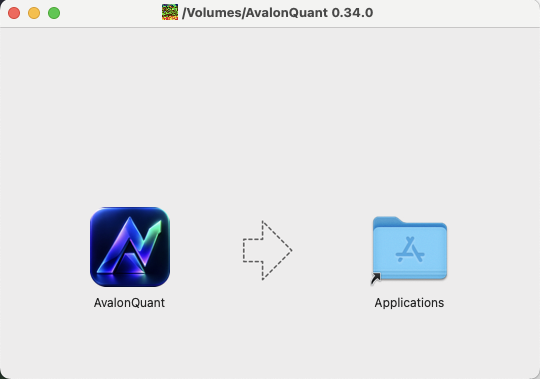
2. Drag it to the Applications folder
In the window that opens, drag the AvalonQuant icon onto the Applications folder on the right. When copying is done, close the dmg window and eject the dmg from the Finder sidebar.
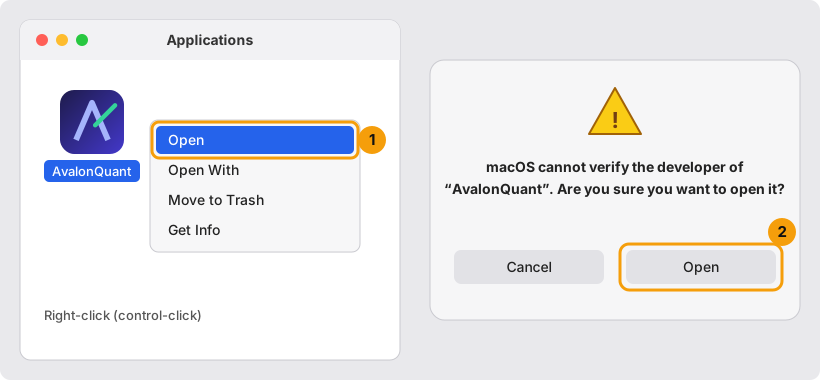
3. First open (macOS 14 and earlier): right-click → 'Open' → 'Open'
In the Applications folder, do not double-click AvalonQuant; right-click (control-click) it and choose 'Open'. In the 'cannot verify the developer. Are you sure you want to open it?' window, press 'Open' again. Once allowed, it opens normally from then on.
3. First open (macOS 15 and later): System Settings → Privacy & Security → 'Open Anyway'
From macOS 15 the right-click 'Open' no longer gets past the warning. Open AvalonQuant once; when the 'Not Opened' window appears, press 'Done'. Do not press 'Move to Trash'.
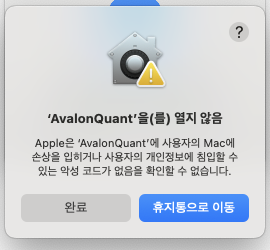
Go to System Settings → Privacy & Security and, under 'Security' near the bottom, press 'Open Anyway' next to "'AvalonQuant' was blocked". In the window that asks again, press 'Open Anyway' and confirm with your Mac password or Touch ID.
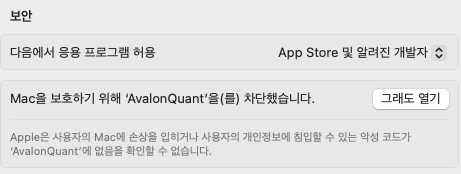
The 'Open Anyway' button is shown only for a while after the app was blocked. If you don't see it, try opening the app once more, then go back to System Settings.
Why the warning appears
Windows and macOS warn on the first launch of a program that is not signed with a code signing certificate recognized by Microsoft or Apple. The AvalonQuant installer is not signed with such a certificate yet, so the warning appears. The warning is not the result of scanning the program; it means the system cannot confirm who made it.
AvalonQuant runs only on your computer. Exchange and broker API keys are stored encrypted on that computer only and are not sent to AvalonQuant's servers. The app connects to the exchanges and brokers you link, and to avalonquant.com for license and update checks.
No signature also means the system does not check for you that the file you received is the one we published. Download the installer only from avalonquant.com and check it yourself with the SHA-256 checksum below.
Checking the installer is genuine (SHA-256)
Compute the installer's SHA-256 value and compare it with the table below. If even one character differs, do not run it; delete it and download again. Letter case does not matter.
Windows (PowerShell)
Open PowerShell from the Start menu and run:
Get-FileHash .\Downloads\AvalonQuant-<version>-win-x64-setup.exe -Algorithm SHA256macOS (Terminal)
Open Applications → Utilities → Terminal and run:
shasum -a 256 ~/Downloads/AvalonQuant-<version>-mac-arm64.dmgChecksums
| System | File | SHA-256 |
|---|---|---|
| Windows 10/11 (64-bit) | AvalonQuant-<version>-win-x64-setup.exe | Published at release |
| macOS (Apple chip) | AvalonQuant-<version>-mac-arm64.dmg | Published at release |
| macOS (Intel) | AvalonQuant-<version>-mac-x64.dmg | Published at release |
After the first launch
1. Enter your license (skip if free)
If you bought a paid license, open 'License' in the side menu → 'Add a license key' and paste the key you received or choose the .aqkey file. If you use it free, skip this step.
2. Connect an account: one key + the 'Allow live trading' switch
Save one exchange or broker API key under 'Accounts'. Prices and virtual trading work right after saving. Each connection's 'Allow live trading' switch is off by default, and while it is off no order, balance or account call is made. A withdrawal permission is not needed, so turn it off when you create the key.
3. Try it in virtual trading first
Run a strategy in virtual trading first: it fills against real prices inside the app and sends no real order. Live trading starts only after you have checked it in virtual trading, switched 'Allow live trading' on and switched the strategy to live. For building strategies, see the strategy developer guide.
Uninstalling and updating
Uninstalling
- Windows: Settings → Apps → Installed apps, then uninstall AvalonQuant.
- macOS: quit the app with 'Quit' in the menu bar icon, then move AvalonQuant from Applications to the Trash.
Uninstalling leaves the data folder (settings, encrypted API keys, backtest cache, logs) in place, and a reinstall picks up where you left off. To remove everything, delete this folder yourself.
- Windows: %APPDATA%\AvalonQuant
- macOS: ~/Library/Application Support/AvalonQuant
Updating
The app tells you when a new version is out. Download the new installer from avalonquant.com and install it the same way. The data folder is not touched, so settings and keys stay.
- Windows: the installer asks the running app to quit, and the app shuts the engine down cleanly (finishing a check in progress and its order records) before the files are replaced.
- macOS: quit the app and engine cleanly with 'Quit' in the menu bar icon, then drag AvalonQuant from the new dmg onto the Applications folder to replace it.
Troubleshooting
My work computer blocks the installation.
A computer managed by an organization can block unsigned programs by policy, so the 'Windows protected your PC' window may have no 'Run anyway' button or macOS may show no 'Open Anyway'. You cannot lift that yourself; ask your IT administrator to allow it or use a personal computer.
My antivirus flags the installer.
Some antivirus programs falsely flag or briefly hold new unsigned programs. First check that the SHA-256 checksum above matches. If it does, add the AvalonQuant installer or install folder to the antivirus allow (exception) list. If the checksum differs, do not run it; delete it.
It says the port is already in use.
The app's engine listens only inside this computer (127.0.0.1) and tries port 18787 first. If another program uses it, the engine picks another free port by itself, so usually nothing needs to be done. If it still fails, make sure AvalonQuant is not running twice, then use 'Restart engine' in the icon's menu or restart the computer.
Nothing appears when I launch it.
Closing the window leaves the app in the notification area (Windows) or menu bar (macOS); click the icon and choose 'Open dashboard'. If there is no icon either, check the error with 'Show engine log' or open logs/engine.log in the data folder. On macOS, check that you finished the 'Open Anyway' step above and downloaded the dmg for your Mac (arm64 for Apple chip, x64 for Intel). If it is still not solved, post on the Q&A page with the error text.